> ## Documentation Index
> Fetch the complete documentation index at: https://docs.outerlayer.ai/llms.txt
> Use this file to discover all available pages before exploring further.
# Connect an issue tracker
> Read issues from a Linear workspace or a Jira site into the Work page, next to GitHub.
GitHub issues are read through the [repository connection](/connect-repository) and need nothing more. If your issues live in Linear or Jira, connect that tracker too. Its issues then appear in the **Add work** dialog beside the GitHub ones, and a work item made from one keeps its Linear or Jira key.
OuterLayer only reads from Linear and Jira. It never writes to them. The repository connection is still needed: pull requests, checks and policy come from GitHub whatever tracker the issue is in.
## Before you start
On the factory, you need the **Connect a tracker** permission. The `owner`, `admin` and `write` roles have it.
You also need these rights in the tracker:
* **Linear:** you are an admin of the workspace, so you can authorize an application on it.
* **Jira:** you can create credentials for a service account in Atlassian Administration, and you hold the **Administer Jira** permission that creating a webhook needs.
Open the factory's **Settings → Issue tracker**. GitHub is listed as built in, with the repositories it reads. Linear and Jira each have a connect action.
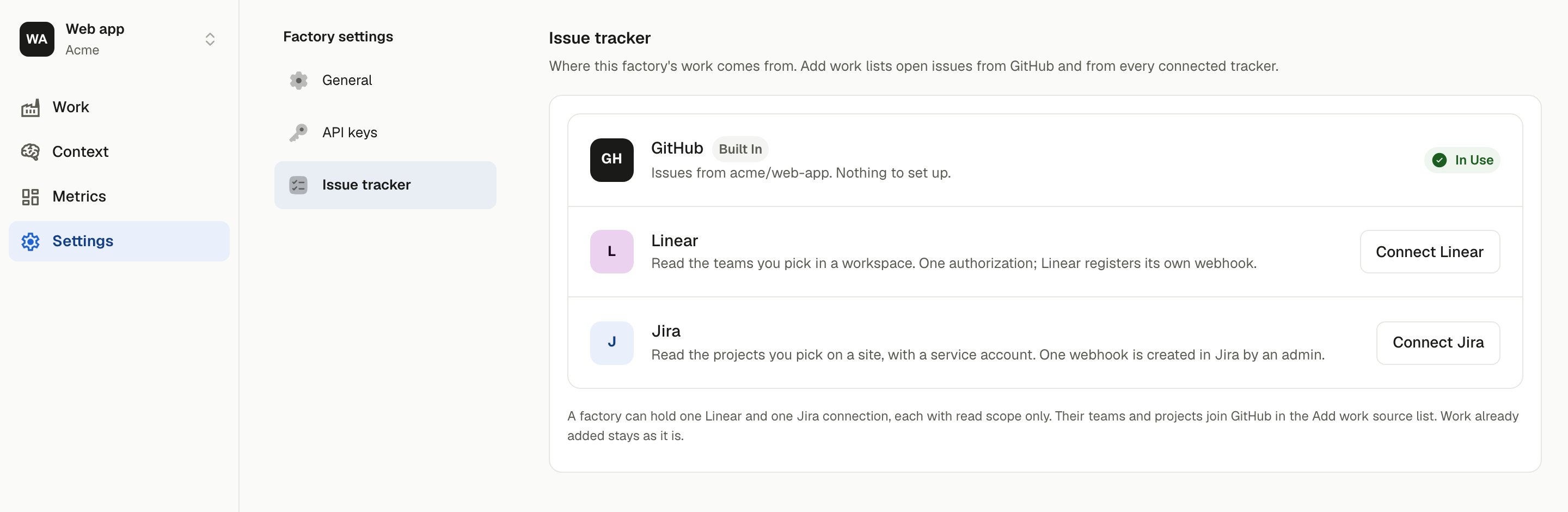 Choose **Connect Linear**. Linear asks you to authorize OuterLayer on a workspace with read scope only. Authorize a workspace that has at least one team.
Back in OuterLayer, the **Teams to read** dialog lists the workspace's teams. Only issues in the teams you tick are listed. Change the set later with **Change** on the connection's card.
Linear registers its own webhook, so issue changes reach the Work page as they happen. There is nothing to paste.
In **Atlassian Administration**, open **Directory → Service accounts**, pick the service account, and choose **Create credentials → OAuth 2.0**. Give it read scopes for Jira issues and projects. The service account also needs **Browse projects** on each project you will list.
Atlassian shows the client id and secret once, on the screen that creates them, and they cannot be recovered afterwards. Copy both before you leave that page. Losing either means creating a new credential.
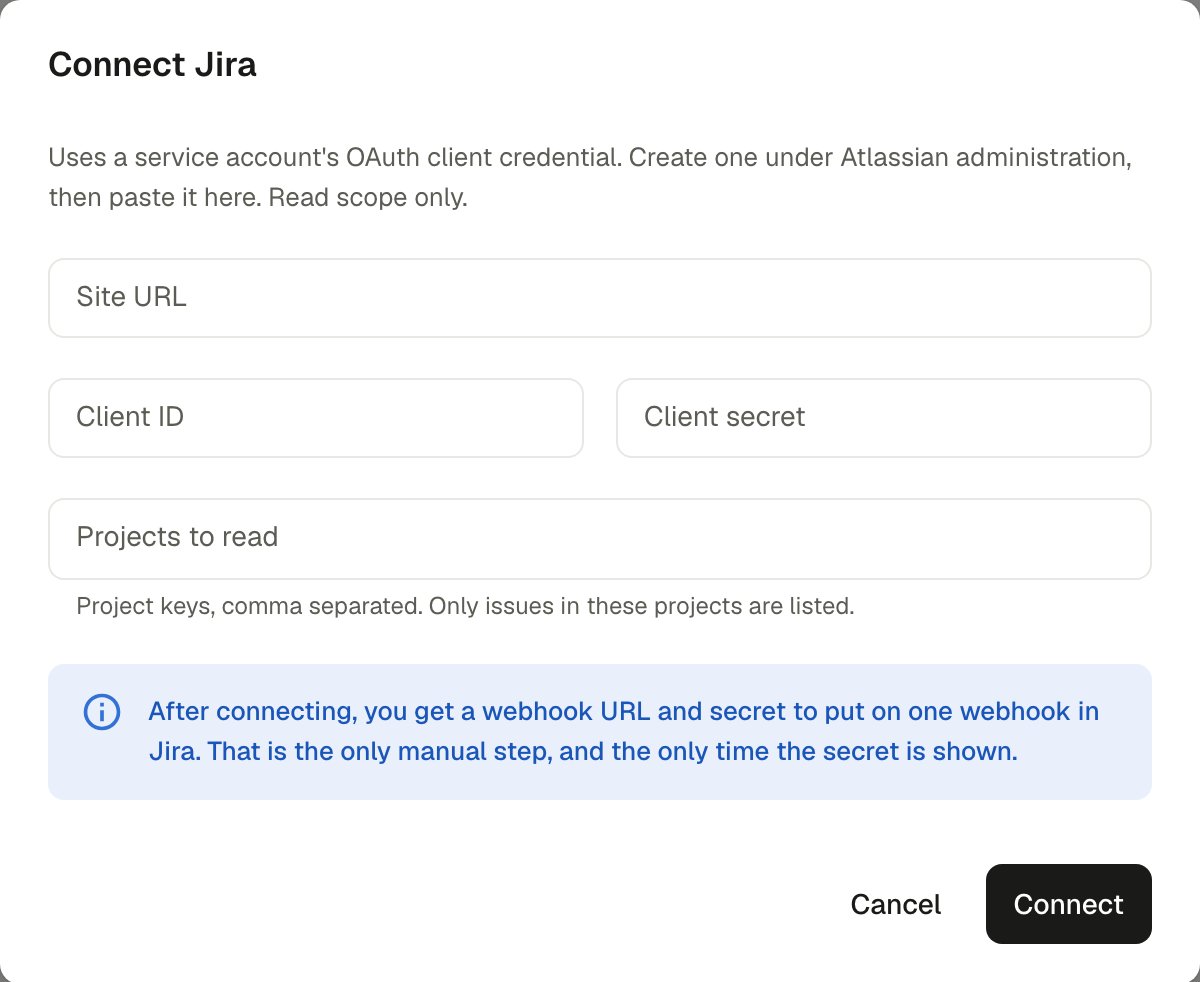
Choose **Connect Jira** and fill in the **Site URL** (such as `https://your-team.atlassian.net`), the **Client ID**, the **Client secret**, and **Projects to read** as comma-separated project keys, for example `ENG, OPS`. Only issues in those projects are listed.
The client secret is stored encrypted and is never shown again.
Choose **Connect Linear**. Linear asks you to authorize OuterLayer on a workspace with read scope only. Authorize a workspace that has at least one team.
Back in OuterLayer, the **Teams to read** dialog lists the workspace's teams. Only issues in the teams you tick are listed. Change the set later with **Change** on the connection's card.
Linear registers its own webhook, so issue changes reach the Work page as they happen. There is nothing to paste.
In **Atlassian Administration**, open **Directory → Service accounts**, pick the service account, and choose **Create credentials → OAuth 2.0**. Give it read scopes for Jira issues and projects. The service account also needs **Browse projects** on each project you will list.
Atlassian shows the client id and secret once, on the screen that creates them, and they cannot be recovered afterwards. Copy both before you leave that page. Losing either means creating a new credential.
Choose **Connect Jira** and fill in the **Site URL** (such as `https://your-team.atlassian.net`), the **Client ID**, the **Client secret**, and **Projects to read** as comma-separated project keys, for example `ENG, OPS`. Only issues in those projects are listed.
The client secret is stored encrypted and is never shown again.
 The dialog then shows a **Webhook URL** and a **Webhook secret**. The secret is shown only now.
The dialog lists the steps in Jira:
1. In Jira, open **Settings**, then **System**, then **WebHooks**, and choose **Create a WebHook**.
2. Paste the URL and the secret into that form.
3. Under **Issue related events**, tick **created**, **updated** and **deleted**, then save.
Until the webhook exists, the Work page still refreshes hourly. Lost the secret? Rotate it from the connection's card on the Issue tracker tab and put the new one on the webhook.
## What a tracker item looks like
| | GitHub | Linear | Jira |
| - | - | - | - |
| Key on the Work page | `owner/repo#42` | `ENG-142` | `PLAT-77` |
| Listed while | The issue is open | The state is not completed, canceled or duplicate | The status is not Done |
| Closes the item when | The issue closes | The state becomes completed | The status becomes Done |
| Kept fresh by | The GitHub App's webhooks | Linear's webhook, plus an hourly refresh | Your webhook, plus an hourly refresh |
A work item from any tracker gets a number on the factory, and that number is what a session is launched with. See [Launch a session](/launch-a-session).
## From the terminal
`outerlayer work build` also takes a Linear or Jira key, not only a GitHub issue number:
```bash theme={"system"}
outerlayer work build --issue ENG-142 --repo acme/api
```
Pass `--repo ` to say which repository the work goes into. A Linear or Jira key never takes the checkout's remote, unlike a plain issue number. Without `--repo`, the item has no repository, and a host cannot build it.
Pass `--tracker linear` or `--tracker jira` when the factory has connected both trackers. A key like `ENG-142` does not say which tracker it belongs to. See the [CLI reference](/reference/cli-work) for every flag `work build` takes.
## Disconnecting
**Disconnect** on a connection's card stops every further read. Items already on the Work page stay as they are, and the Work page reports the tracker as unreadable until it is connected again. A factory holds at most one Linear and one Jira connection.
This documentation is built and hosted on [Mintlify](https://mintlify.com), a developer documentation platform.
The dialog then shows a **Webhook URL** and a **Webhook secret**. The secret is shown only now.
The dialog lists the steps in Jira:
1. In Jira, open **Settings**, then **System**, then **WebHooks**, and choose **Create a WebHook**.
2. Paste the URL and the secret into that form.
3. Under **Issue related events**, tick **created**, **updated** and **deleted**, then save.
Until the webhook exists, the Work page still refreshes hourly. Lost the secret? Rotate it from the connection's card on the Issue tracker tab and put the new one on the webhook.
## What a tracker item looks like
| | GitHub | Linear | Jira |
| - | - | - | - |
| Key on the Work page | `owner/repo#42` | `ENG-142` | `PLAT-77` |
| Listed while | The issue is open | The state is not completed, canceled or duplicate | The status is not Done |
| Closes the item when | The issue closes | The state becomes completed | The status becomes Done |
| Kept fresh by | The GitHub App's webhooks | Linear's webhook, plus an hourly refresh | Your webhook, plus an hourly refresh |
A work item from any tracker gets a number on the factory, and that number is what a session is launched with. See [Launch a session](/launch-a-session).
## From the terminal
`outerlayer work build` also takes a Linear or Jira key, not only a GitHub issue number:
```bash theme={"system"}
outerlayer work build --issue ENG-142 --repo acme/api
```
Pass `--repo ` to say which repository the work goes into. A Linear or Jira key never takes the checkout's remote, unlike a plain issue number. Without `--repo`, the item has no repository, and a host cannot build it.
Pass `--tracker linear` or `--tracker jira` when the factory has connected both trackers. A key like `ENG-142` does not say which tracker it belongs to. See the [CLI reference](/reference/cli-work) for every flag `work build` takes.
## Disconnecting
**Disconnect** on a connection's card stops every further read. Items already on the Work page stay as they are, and the Work page reports the tracker as unreadable until it is connected again. A factory holds at most one Linear and one Jira connection.
This documentation is built and hosted on [Mintlify](https://mintlify.com), a developer documentation platform.