> ## Documentation Index
> Fetch the complete documentation index at: https://docs.outerlayer.ai/llms.txt
> Use this file to discover all available pages before exploring further.
# Connect a repository
> Install the OuterLayer GitHub App, then link a repository and its base branch to the factory.
A factory reads its issues, pull requests and check results from GitHub. Until a repository is connected, nothing can be added to the Work page.
Connecting has two steps. Install the OuterLayer GitHub App on your GitHub organization. Then link a repository and its base branch to this factory.
## Where to start it
You can start from any of these places. Each opens the same GitHub screen.
| Where | What you choose |
| - | - |
| The setup panel, on a new factory's Work page | **Connect GitHub repository** on step 1 |
| The **Factories** page, in the menu on a factory's card | **Connect Git Repository** |
| The factory's **Settings → General** | **Connect GitHub repository**, offered while no repository is connected |
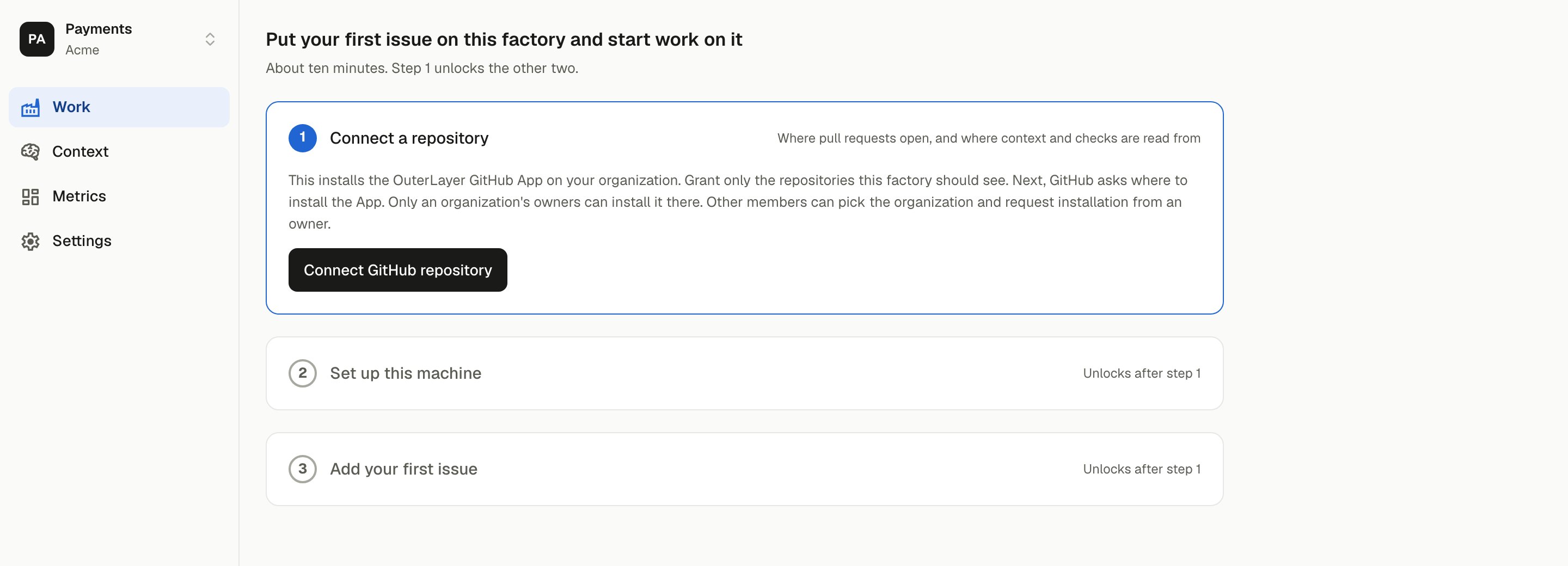 GitHub asks which organization to install on, and whether to grant all repositories or only selected ones. Grant at least the repository you mean to link. You can change the grant later on GitHub.
An owner of the GitHub organization installs the App. Any other member can pick the organization and request the install. GitHub sends the request to the owners, and the install completes once one of them approves. A repository under your own account needs nothing extra.
Every factory in an organization can use that organization's one GitHub App installation. Connecting a second factory, or choosing another repository, reuses that installation: GitHub opens its settings, and saving them returns you to the factory you started from. Start the connect from the factory itself, and save on GitHub within 10 minutes of starting it.
A repository the installation does not cover yet is added from the App's settings on GitHub, under **Settings → Applications → Installed GitHub Apps → OuterLayer → Configure**. Then link it from the factory.
A GitHub installation belongs to one OuterLayer organization. If another OuterLayer organization already connected it, the connect fails and a page says the installation is already in use. Ask that organization to remove it, or install on a different GitHub organization.
GitHub returns you to where you started, and the same place now offers **Link repository**. Choose it, then pick the repository and its base branch.
Pick the branch your pull requests merge into. Policy and validators are read from `.outerlayer/` on each pull request's base branch. A repository governed by a [context source](/share-instructions-across-repositories) reads them from that source instead.
The repository's open issues now appear in **Add work** on the Work page. A pull request opened from a session on one of its items is joined to that item.
A factory can hold several repositories. Link the next one from **Settings → General**, which lists each with its branch. A repository on a GitHub organization without the App needs the install first. One on an organization already covered needs only the link.
Create a second factory only when a group of repositories needs its own Work page, its own keys and its own policy.
Each repository carries its own agent instructions and policy. Where several should share one set, one repository can be the factory's **context source** and supply them to the rest. You don't need one to start: see [Share instructions across repositories](/share-instructions-across-repositories).
## Issues in Linear or Jira
The repository connection reads GitHub issues. If your team's issues live in Linear or Jira, also connect that tracker on **Settings → Issue tracker**. Its issues then appear in **Add work** beside the GitHub ones. You still need the repository connection, because pull requests, checks and policy come from GitHub. See [Connect an issue tracker](/connect-a-tracker).
## What the connection is used for
| Signal | Where it comes from |
| - | - |
| Issues for the Work page | Read from the repository when you add one. |
| Pull request state and check results | GitHub tells OuterLayer as they change. |
| Policy and validators | `.outerlayer/policy.yaml` and `.outerlayer/validators/` on the pull request's base branch. |
| Repository tokens for builds | The gateway asks GitHub for a token limited to one repository. See [GitHub App permissions and build tokens](/github-app-and-build-tokens). |
| The evidence comment | Posted on each pull request. See below. |
### The evidence comment
The docs call it the evidence comment. The setting that turns it on is **Post session summaries on pull requests**, on **Settings → General**. It is off by default.
The comment lists the checks on the pull request and the agent sessions behind it. It includes each session's duration and cost. On a public repository, anyone can read it, costs included. Turning the setting off stops new comments; a comment already posted stays.
## If GitHub returns an error
When OuterLayer cannot finish a connect, you stay signed in and land on a page that says what failed. Its **Go back** button returns you to the page where you started the connect. If that page is not known, it goes to the factory's **Work** page. If OuterLayer cannot tell which factory the connect was for, it goes to your organizations list.
| Message | What it means | What to do |
| - | - | - |
| **GitHub connection could not be confirmed** | The link back from GitHub is missing, expired or not valid. An interrupted attempt, or one left open too long, cannot be resumed. | Connect again from the factory: the setup panel, the **Factories** page or **Settings → General**. |
| **GitHub installation already in use** | The GitHub installation is already connected to a different organization. One installation belongs to one organization. | Install the App on another GitHub organization, or connect from the organization that owns the installation. |
| **GitHub's answer was incomplete** | GitHub returned without saying which installation to connect. | Connect again from the factory. |
| **GitHub installation could not be confirmed** | GitHub did not confirm that you can use the installation. The sign-in on GitHub may be a different account from the one that owns it, or the link was already used. | Connect again from the factory, signed in to GitHub as a member of the account that owns the installation. |
| **GitHub install waiting for approval** | You asked the owner of the GitHub account to install the App, and they have not approved it yet. | Ask the owner to approve the request on GitHub. Once they have, connect again from the factory. |
On the **Factories** page, the card menu shows **Connect Git Repository** until the App is installed. After that it shows **Link repository**, and once a repository is linked, **Change Git Provider**.
If a connect fails a second time, the App may have been removed on GitHub. Start the connect again, and GitHub offers the install. Then link the repository again.
This documentation is built and hosted on [Mintlify](https://mintlify.com), a developer documentation platform.
GitHub asks which organization to install on, and whether to grant all repositories or only selected ones. Grant at least the repository you mean to link. You can change the grant later on GitHub.
An owner of the GitHub organization installs the App. Any other member can pick the organization and request the install. GitHub sends the request to the owners, and the install completes once one of them approves. A repository under your own account needs nothing extra.
Every factory in an organization can use that organization's one GitHub App installation. Connecting a second factory, or choosing another repository, reuses that installation: GitHub opens its settings, and saving them returns you to the factory you started from. Start the connect from the factory itself, and save on GitHub within 10 minutes of starting it.
A repository the installation does not cover yet is added from the App's settings on GitHub, under **Settings → Applications → Installed GitHub Apps → OuterLayer → Configure**. Then link it from the factory.
A GitHub installation belongs to one OuterLayer organization. If another OuterLayer organization already connected it, the connect fails and a page says the installation is already in use. Ask that organization to remove it, or install on a different GitHub organization.
GitHub returns you to where you started, and the same place now offers **Link repository**. Choose it, then pick the repository and its base branch.
Pick the branch your pull requests merge into. Policy and validators are read from `.outerlayer/` on each pull request's base branch. A repository governed by a [context source](/share-instructions-across-repositories) reads them from that source instead.
The repository's open issues now appear in **Add work** on the Work page. A pull request opened from a session on one of its items is joined to that item.
A factory can hold several repositories. Link the next one from **Settings → General**, which lists each with its branch. A repository on a GitHub organization without the App needs the install first. One on an organization already covered needs only the link.
Create a second factory only when a group of repositories needs its own Work page, its own keys and its own policy.
Each repository carries its own agent instructions and policy. Where several should share one set, one repository can be the factory's **context source** and supply them to the rest. You don't need one to start: see [Share instructions across repositories](/share-instructions-across-repositories).
## Issues in Linear or Jira
The repository connection reads GitHub issues. If your team's issues live in Linear or Jira, also connect that tracker on **Settings → Issue tracker**. Its issues then appear in **Add work** beside the GitHub ones. You still need the repository connection, because pull requests, checks and policy come from GitHub. See [Connect an issue tracker](/connect-a-tracker).
## What the connection is used for
| Signal | Where it comes from |
| - | - |
| Issues for the Work page | Read from the repository when you add one. |
| Pull request state and check results | GitHub tells OuterLayer as they change. |
| Policy and validators | `.outerlayer/policy.yaml` and `.outerlayer/validators/` on the pull request's base branch. |
| Repository tokens for builds | The gateway asks GitHub for a token limited to one repository. See [GitHub App permissions and build tokens](/github-app-and-build-tokens). |
| The evidence comment | Posted on each pull request. See below. |
### The evidence comment
The docs call it the evidence comment. The setting that turns it on is **Post session summaries on pull requests**, on **Settings → General**. It is off by default.
The comment lists the checks on the pull request and the agent sessions behind it. It includes each session's duration and cost. On a public repository, anyone can read it, costs included. Turning the setting off stops new comments; a comment already posted stays.
## If GitHub returns an error
When OuterLayer cannot finish a connect, you stay signed in and land on a page that says what failed. Its **Go back** button returns you to the page where you started the connect. If that page is not known, it goes to the factory's **Work** page. If OuterLayer cannot tell which factory the connect was for, it goes to your organizations list.
| Message | What it means | What to do |
| - | - | - |
| **GitHub connection could not be confirmed** | The link back from GitHub is missing, expired or not valid. An interrupted attempt, or one left open too long, cannot be resumed. | Connect again from the factory: the setup panel, the **Factories** page or **Settings → General**. |
| **GitHub installation already in use** | The GitHub installation is already connected to a different organization. One installation belongs to one organization. | Install the App on another GitHub organization, or connect from the organization that owns the installation. |
| **GitHub's answer was incomplete** | GitHub returned without saying which installation to connect. | Connect again from the factory. |
| **GitHub installation could not be confirmed** | GitHub did not confirm that you can use the installation. The sign-in on GitHub may be a different account from the one that owns it, or the link was already used. | Connect again from the factory, signed in to GitHub as a member of the account that owns the installation. |
| **GitHub install waiting for approval** | You asked the owner of the GitHub account to install the App, and they have not approved it yet. | Ask the owner to approve the request on GitHub. Once they have, connect again from the factory. |
On the **Factories** page, the card menu shows **Connect Git Repository** until the App is installed. After that it shows **Link repository**, and once a repository is linked, **Change Git Provider**.
If a connect fails a second time, the App may have been removed on GitHub. Start the connect again, and GitHub offers the install. Then link the repository again.
This documentation is built and hosted on [Mintlify](https://mintlify.com), a developer documentation platform.