

Create a key
Open the factory, then Settings → API keys, and choose Create API key. Name it after what will use it, such aslaptop or ci. The key is shown once, with a copy button. It is not shown again.
Choose a preset
The dialog asks for a preset. Each preset is a fixed set of permissions, and Custom lets you tick them one by one.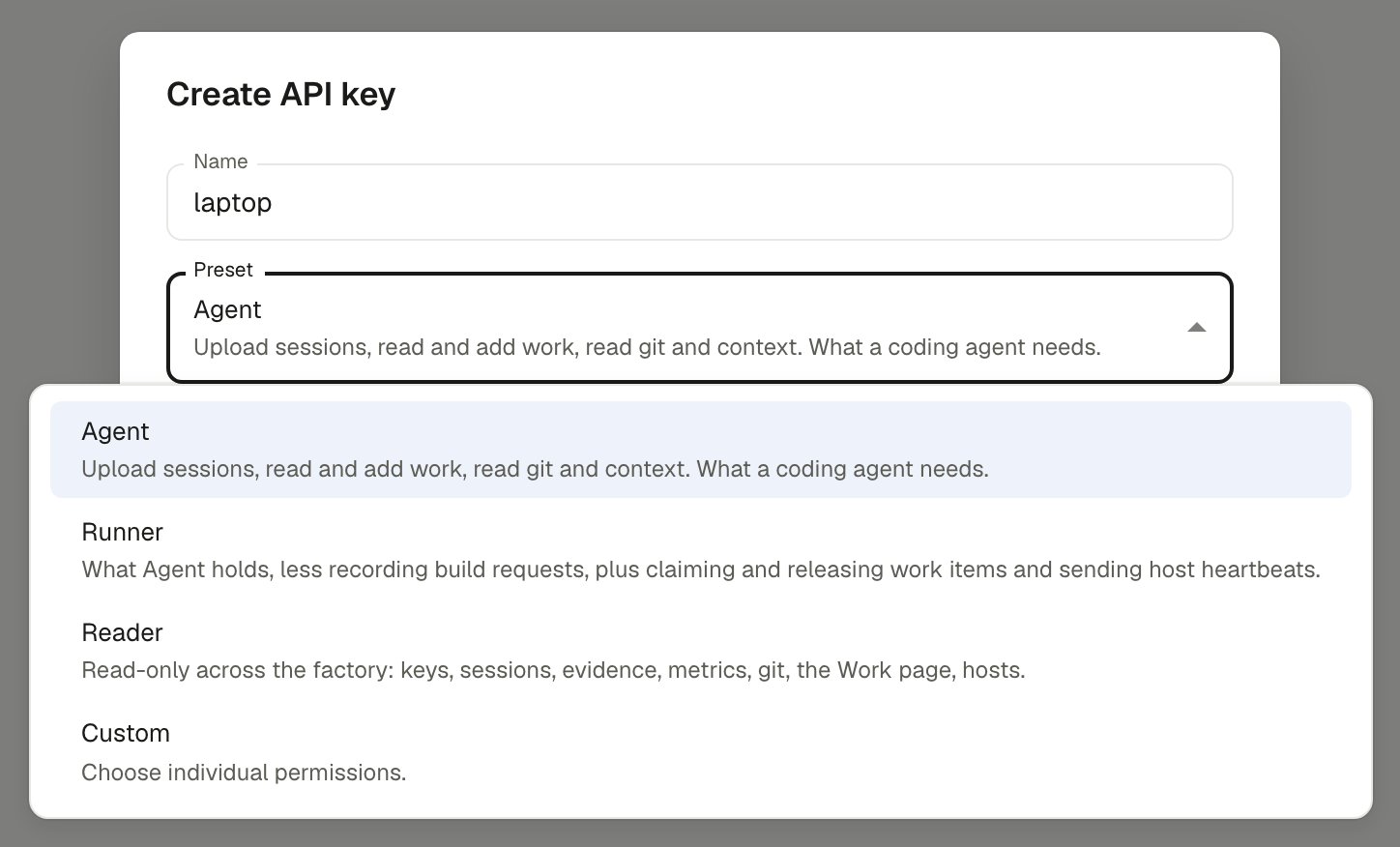
Four presets. Agent is the default and suits the CLI on a developer machine.
A preset’s permissions are copied onto the key when it is made. A later change to a preset does not reach existing keys. Edit the key to add a missing permission.
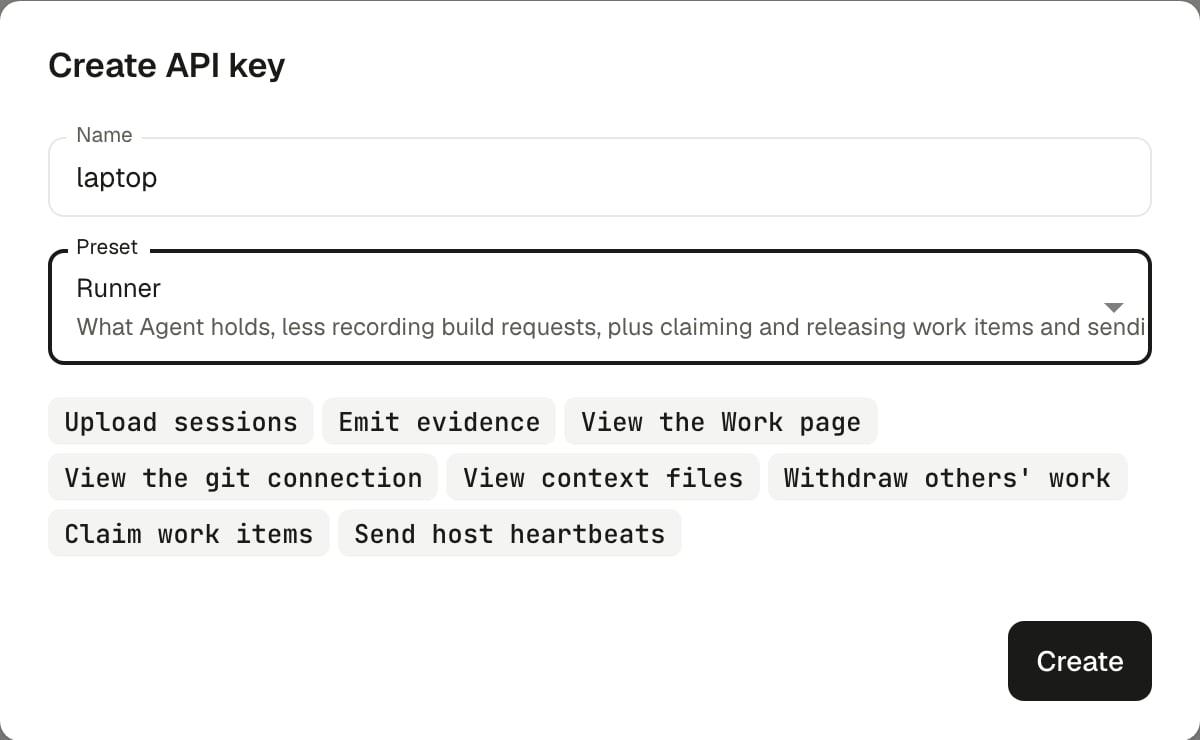
The Runner preset lists the permissions it carries.
work remove on someone else’s addition. That needs work.update. The key the setup panel creates uses the Agent preset. To build a narrower key, pick Custom and tick what you need:
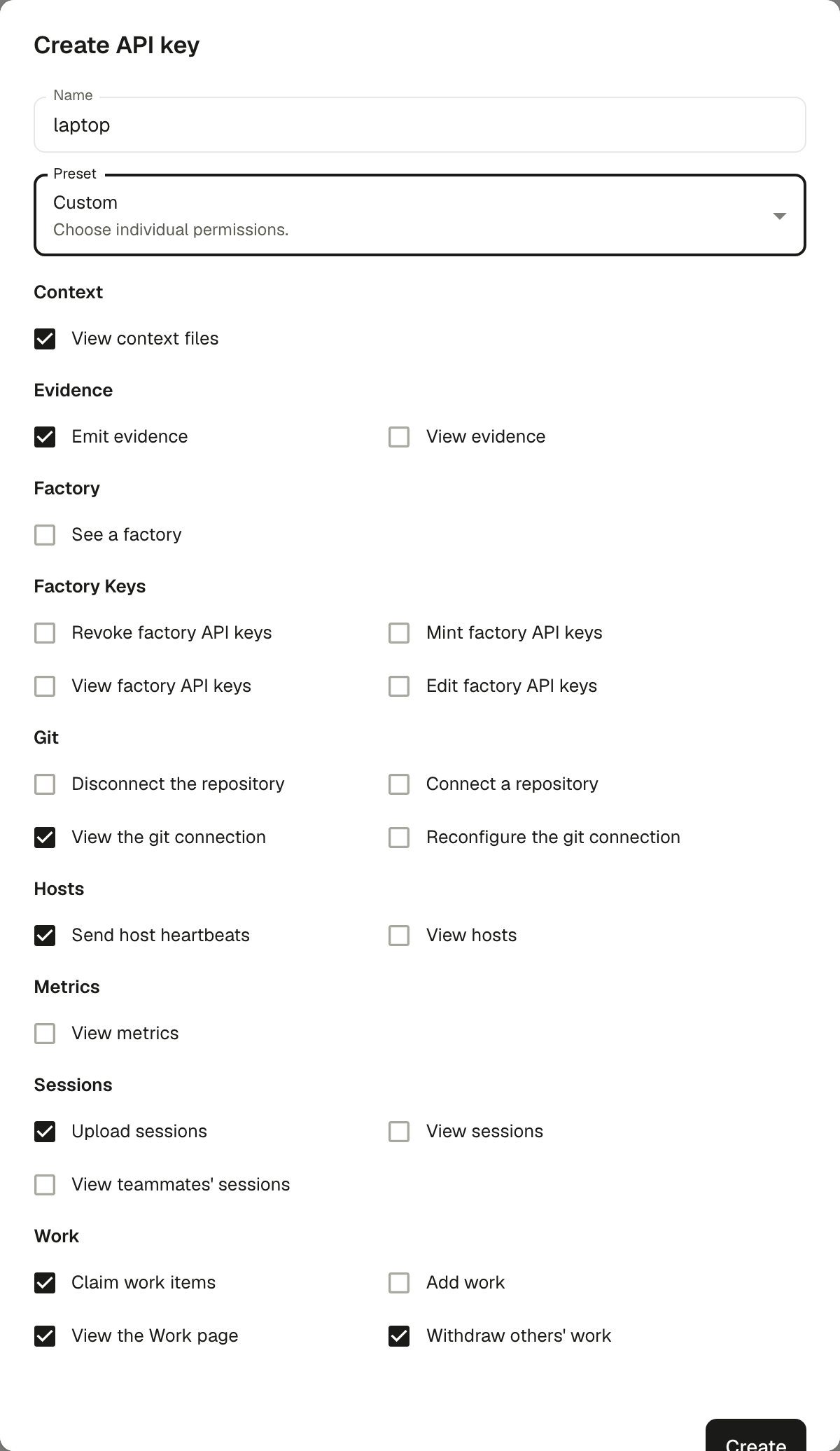
Custom shows every permission, grouped by area.
work threads needs work.read. work comment needs work.insert, evidence.insert or work.review, depending on what it records. See work comment.
Give the key to the CLI
--url https://api.outerlayer.ai; there is no default. --app-id takes the Factory Id, which is on Settings → General with a copy button.
To sign in without a key, run outerlayer login with nothing piped and approve it in the dashboard. Then run outerlayer connect to choose a factory. The machine then holds a login for your account, not a key. A factory key always wins over a login, so CI and runners keep using theirs. See Cloud commands.
The dialog that reveals a new key shows this command with all three already filled in, so you can copy it from there. login writes ~/.outerlayer/config.json with owner-only permissions.
Use a key in CI
Set three environment variables instead of runninglogin:
Make your first API call
The Agent preset carrieswork.read, which listing work items needs. See Make a request for the call, and Errors for what a refusal means.
Rotate or revoke
Delete the key from Settings → API keys. Callers are refused within about five minutes, once the gateway’s cached copy of it expires. Create a new key and runlogin again on each machine. outerlayer mcp serve reads the config when it starts, so your editor picks up a new key the next time it connects.
Move a runner key to another host
A runner key, one that holdswork.claim, is bound to the host key of the first machine that claims with it. The key then works only from that machine: the gateway refuses every request the host key did not sign. See The host key.
Settings → API keys shows each bound key’s host key fingerprint and when it was bound. To move the key to a new machine, choose Clear host key on that row. You need permission to update API keys. The next claim from any machine binds that machine’s host key, so clear the binding just before you start the runner on the new host. On an Enterprise plan, the organization audit log (Settings → Audit log) records each binding, each clearing, and each request the gateway refused for its signature.